Gestionar las cookies que se utilizan con fines publicitarios, como la personalización de anuncios, el remarketing y el análisis del rendimiento de los anuncios.
4.3.9.3. Set up Claws Mail mail client
When you first start the Claws Mail mail client, a wizard opens to help you set up your first mail account. Subsequent mail accounts are set up via the menu.
Wizard
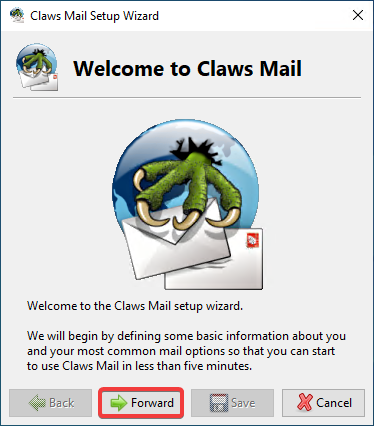
- On the welcome page, click "Forward":
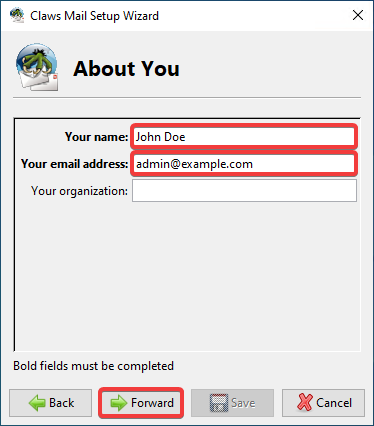
- Enter your name, mailbox name and click "Forward":
- Specify the incoming mail settings and click "Forward":
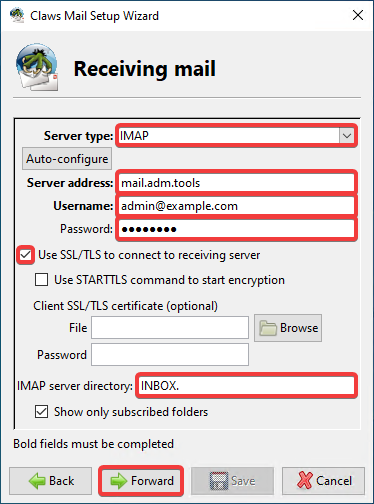
- "Server type" — "IMAP".
- "Server address" —
mail.adm.tools. - "Username" — mailbox name.
- "Password" — mailbox password.
- "Use SSL/TLS to connect to receiving server" — enabled.
- "IMAP server directory" —
INBOX.(with a dot).
- Specify the outgoing mail settings and click "Forward":
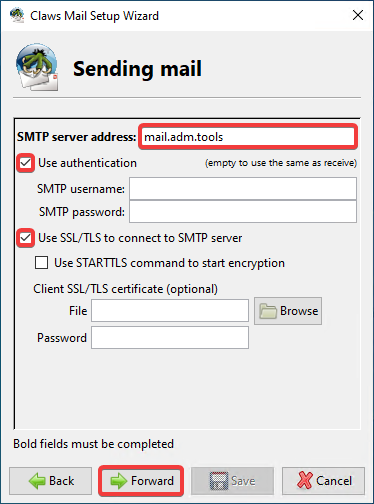
- "SMTP server address" —
mail.adm.tools. - "Use authentication" — enabled.
- "Use SSL/TLS to connect to SMTP server" — enabled.
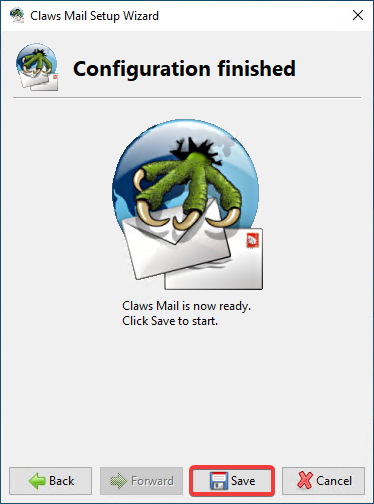
- Click "Save":
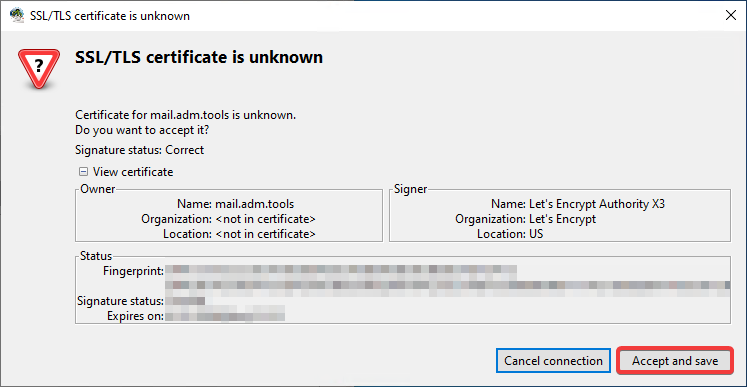
- If a window appears with a notification about an unknown certificate when connecting, click "Accept and save":
- Check the mail operation.
Menu
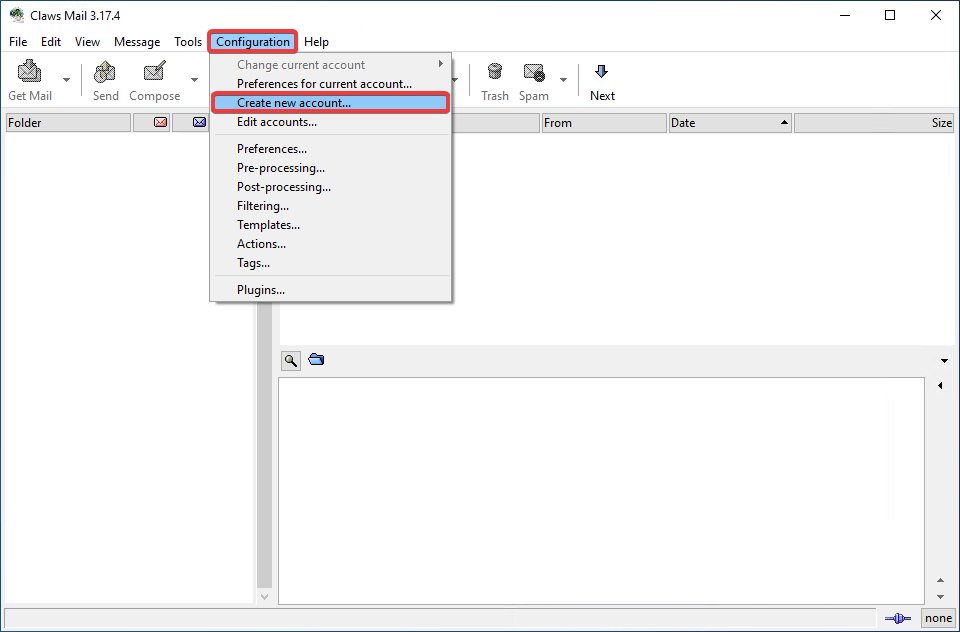
- In the top menu, select "Configuration → Create new account":
- In the "Basic" section, enter your details and connection settings:
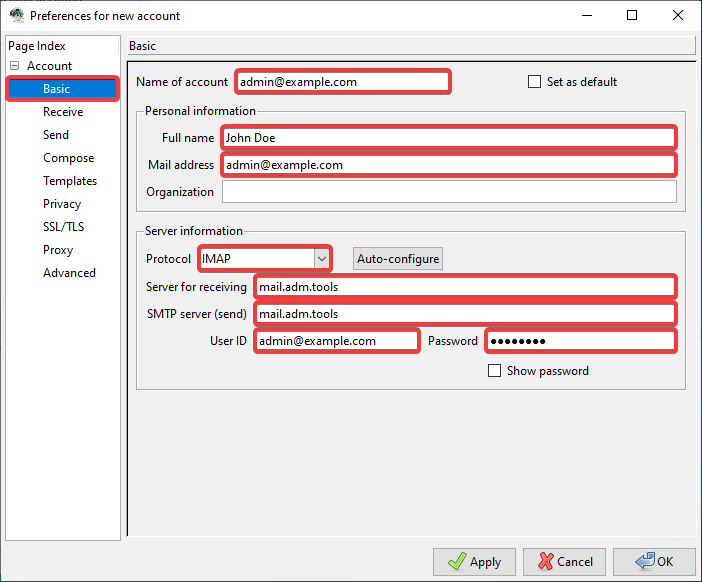
- "Name of account" — name of the account being created in any format.
- "Personal information":
- "Full name" — your name in any form.
- "Mail address" — mailbox name.
- "Server information":
- "Protocol" — "IMAP".
- "Server for receiving" —
mail.adm.tools. - "SMTP server (send)" —
mail.adm.tools. - "User ID" — mailbox name.
- "Password" — mailbox password.
- In the "Receive" section, in the "IMAP server directory" field, enter
INBOX.(with a dot):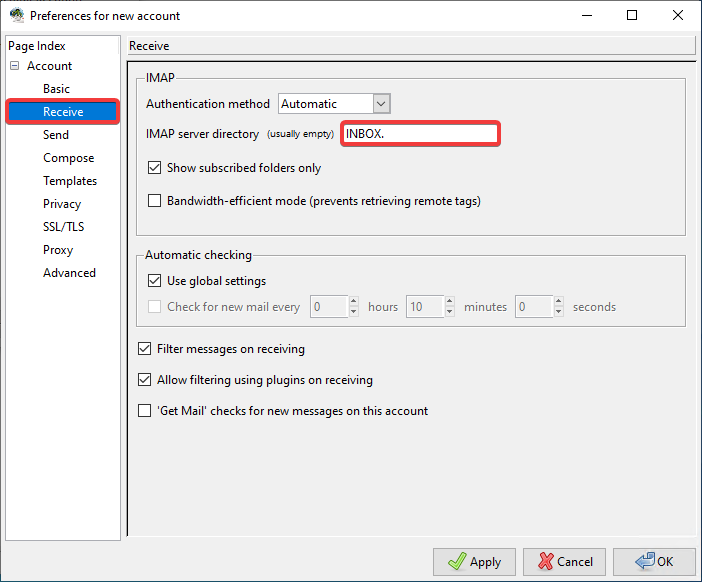
- In the "Send" section, enable "SMTP Authentication (SMTP AUTH)":
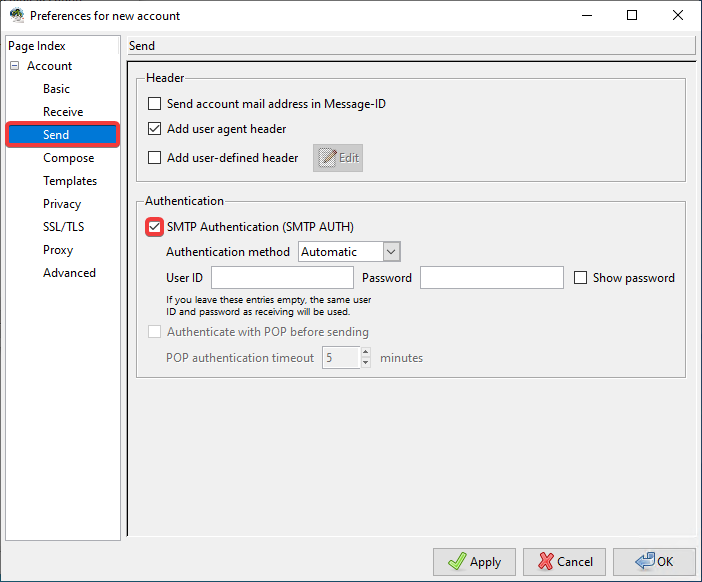
- In the "SSL/TLS" section, specify the encryption settings and click "OK":
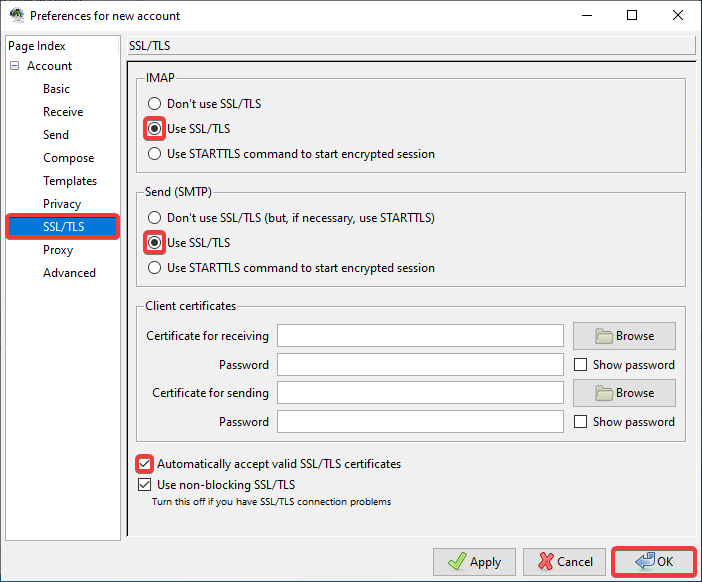
- In the "IMAP" and "Send (SMTP)" sections, select "Use SSL/TLS".
- "Automatically accept valid SSL/TLS certificates" — enable this option to prevent a notification window from appearing when connecting to an unknown certificate.
- Check the mail operation.